
Photoshop brushes for digital painting & concept art.
Explore Photoshop brushes for digital painting, illustration and concept art. Discover painterly brushes for sketching, blocking shapes, blending, texture, rendering and final details while building a more flexible Adobe Photoshop painting workflow.
Build a Photoshop brush set around each stage of digital painting.
A focused painting toolkit can make it easier to move from rough ideas to polished artwork. Choose brushes that serve clear purposes instead of collecting dozens of nearly identical tools.
Painterly Photoshop Brushes
Create expressive strokes and textured shapes for digital illustration, character art and environment painting.
Explore painting brushes →Sketching Brushes
Develop thumbnails, rough concepts and construction drawings before moving into painted forms and rendering.
Browse sketch brushes →Shape & Blocking Brushes
Establish silhouettes, large color relationships and major forms before spending time on smaller details.
Explore blocking brushes →Blending Brushes
Create softer transitions between painted areas while preserving enough variation to avoid overly smooth rendering.
Browse blending brushes →Texture Brushes
Add material character, grain and surface variation to environments, clothing, skin, rocks and painted objects.
Explore texture brushes →Concept Art Brushes
Work quickly through silhouettes, environments, characters and visual-development ideas with flexible painting tools.
Browse concept art brushes →Portrait Painting Brushes
Use controlled brushes for skin, hair, edges, facial features and gradual value transitions in digital portraits.
Explore portrait brushes →Environment Brushes
Speed up foliage, clouds, terrain, atmosphere and repeated environmental details while painting scenes.
Browse environment brushes →Detail & Finish Brushes
Add selective sharp accents, texture and small details after the major forms, values and colors are established.
Explore detail brushes →A better brush library should make painting simpler, not more complicated.
Digital painting improves when brushes support clear decisions about shape, value, edge and texture. A small set of familiar tools can often outperform a huge collection you rarely understand.
Shape First
Establish strong silhouettes and major forms before chasing small surface details.
Control Your Edges
Use hard, soft and lost edges intentionally to guide attention and describe form.
Texture With Purpose
Add material detail where it strengthens the painting instead of applying texture uniformly.
Finish Selectively
Sharper details are most effective when concentrated around important focal areas.
The brush matters less than the decisions you make with it.
A Photoshop brush can change stroke texture and response, but strong painting still depends on composition, value, color, form and edge control. Use brushes to support those fundamentals rather than replace them.
Start with large shapes
Block major forms and value relationships before introducing fine texture and small details.
Limit your active brushes
Choose a few brushes you understand well for blocking, blending, texture and finishing.
Vary hard and soft edges
Edge variation can create depth and visual focus more effectively than simply adding more detail.
Zoom out regularly
Check whether the overall painting still reads before spending time on details that may not matter.
From Photoshop sketch to polished painting.
Keep the process simple and move from broad visual decisions toward progressively smaller details.
Sketch
Establish composition, gesture, perspective and the main idea with simple marks.
Block
Create large shapes and major value or color relationships without worrying about detail.
Model
Develop form through light, shadow, color shifts and deliberate edge control.
Texture
Add material variation where it helps describe surfaces and supports the visual story.
Finish
Use sharper details and stronger accents around the most important areas of the image.
Explore Photoshop brushes for digital artists and illustrators.
Find brush resources for digital painting, concept art, illustration, texture, portraits, environments and professional art workflows.
Explore Photoshop brushes for painting and illustration.
Discover recently added Photoshop brush resources for digital art, painting, concept work and illustration.
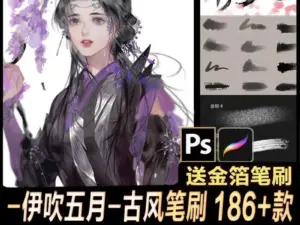
X500-伊吹东方古韵百款笔刷合集 古风笔刷 186+款
Sold by Ibuki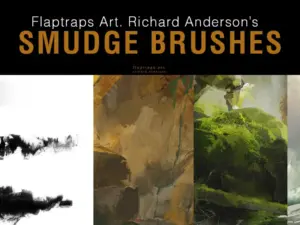
Flaptraps Art Smudge Brushes
Sold by richard anderson
Oil Paint FX Photoshop Action Plugin
Sold by Giallo
Digital Painting Photo Effect
Sold by Volus Themes
Brush Painting Photo Effect
Sold by brushespack
Dry Brush Photo Effect
Sold by brushespack
Watercolor Dry Brush Effect Mockup
Sold by brushespack
Brushwork Artistic Procreate & Photoshop Brushes
Sold by brushespack
Smart Painting Effect For Photoshop
Sold by brushespack
Watercolor Dry Brush Effects
Sold by brushespack
Multi-Color, Mixed Paint Brushes
Sold by JRChild
Hand Rolled Ink Brushes
Sold by JRChild
30 Acrylic Photoshop Stamp Brushes Vol 1
Sold by Mef
30 Abstract Fire Painting Brushes
Sold by brushespack
30 Paint Tube Brushes
Sold by brushespack
51 Handcrafted Watercolor Brushes
Sold by brushespack
30 Mixed Oil Tube Brushes
Sold by brushespack

30 Knife Painting Brushes
Sold by brushespack

Digital Painting Photoshop Action
Sold by brushespack
Realistic Painting
Sold by brushespack
Realistic Painting
Sold by brushespack
Classic Watercolor Art Ps Action
Sold by brushespackPhotoshop digital painting brush questions.
Helpful information about choosing brushes, painting workflows, pressure sensitivity and building an efficient Photoshop art toolkit.
What are Photoshop brushes for digital painting?
They are brush presets designed for drawing, painting, texturing and rendering artwork inside Adobe Photoshop.
What brushes are best for digital painting in Photoshop?
A practical set usually includes a sketch brush, solid blocking brush, painterly brush, texture brush and a more controlled detail brush.
Do I need hundreds of Photoshop brushes?
No. Many artists work efficiently with a small group of familiar brushes and use specialized tools only when a project requires them.
Are Photoshop painting brushes useful for concept art?
Yes. They can support thumbnails, shape exploration, environment painting, characters, texture and visual development.
Can Photoshop brushes respond to pen pressure?
Many brush presets can use pressure-sensitive settings when Photoshop is used with compatible pen-tablet hardware. Individual brush behavior varies.
Are free Photoshop painting brushes available?
Yes. Brushes Pack includes free Photoshop brush resources. Visit Free Photoshop Brushes.
What is an ABR file?
ABR is a commonly used Adobe Photoshop brush format. Always review the individual product information to confirm the included file type and compatibility.
Can painting brushes be used for finished illustrations?
Yes. Brushes can support every stage from rough sketching and blocking to texture, rendering and final detail work.
Photoshop brushes for digital painting, illustration and concept art.
Photoshop brushes for digital painting can help artists build flexible workflows for sketching, blocking, rendering, texturing and finishing artwork. Different brushes can reproduce smooth digital paint, traditional-media texture, dry marks, expressive strokes and specialized effects.
At Brushes Pack, artists can explore painting resources alongside a broader collection of Photoshop brushes and digital assets.
What are Photoshop digital painting brushes?
Photoshop painting brushes are brush presets configured for artistic workflows such as illustration, concept design, portraits, environments and digital painting.
Their settings can influence shape, spacing, texture, opacity and pressure response, which changes how strokes behave while painting.
Best Photoshop brushes for digital painting
The best brushes are not necessarily the most complex ones. A useful toolkit often includes one brush for sketching, one for solid shape blocking, one painterly brush, one texture brush and one controlled detail tool.
Learning a small group of brushes deeply can make painting faster because you spend less time searching through presets.
Painterly Photoshop brushes
Painterly brushes create strokes with visible texture, irregular edges or traditional-media character. They can help artwork feel less mechanically smooth and work particularly well for expressive illustration.
Use painterly texture selectively so the underlying form and value structure remain clear.
Photoshop brushes for concept art
Concept artists often work under time constraints and need tools that support rapid exploration. Flexible painting brushes can help generate silhouettes, environments, characters and mood studies without requiring a fully rendered approach.
The purpose of early concept work is usually to communicate an idea clearly rather than produce final-detail artwork.
Photoshop sketch brushes
Sketch brushes are useful for thumbnails, composition studies and construction drawing. A slightly textured brush can help early drawing stay loose and prevent premature polishing.
Once the major drawing works, create a cleaner layer or begin painting directly over the sketch.
Photoshop blocking brushes
Blocking brushes are useful for establishing large shapes and value relationships. Harder-edged brushes can help artists think in simple graphic masses before adding texture and detail.
A strong block-in usually makes the later stages of painting easier because the major visual structure is already solved.
Photoshop blending brushes
Blending tools can soften transitions between colors and values, but too much smoothing can remove structure and texture.
Preserve a mix of hard and soft edges to keep the image visually interesting and dimensional.
Texture brushes for Photoshop painting
Texture brushes can suggest materials such as stone, foliage, fabric, clouds, skin and weathered surfaces. They are useful when repeated detail would otherwise require significant manual work.
Apply texture according to form and lighting so it feels integrated with the object rather than placed on top of it.
Photoshop portrait brushes
Portrait painting benefits from controlled brushes for skin transitions, hair, facial details and edge variation.
Start with large value and color relationships before refining eyelashes, pores, hair strands or other small features.
Photoshop brushes for character painting
Character artists may combine sketch brushes, solid painting brushes and texture tools while developing costumes, materials and anatomy.
Keep the silhouette readable before adding surface complexity. Strong shape design often matters more than small rendering details.
Photoshop environment brushes
Environment brushes can help create foliage, terrain, clouds, architecture textures and atmospheric detail. They can be especially useful during concept art workflows where scenes need to develop quickly.
Use repeated-detail brushes with perspective and scale in mind so the environment remains believable.
Photoshop brushes for fantasy art
Fantasy artists can use painterly and texture brushes for creatures, environments, armor, magic effects and dramatic lighting.
Specialized effect brushes can accelerate some details, but the composition and lighting should still establish the main visual impact.
Photoshop brushes for landscape painting
Landscape painting often moves from broad sky, terrain and light relationships toward progressively smaller environmental details.
Use texture brushes later in the process so foliage, rocks and surfaces reinforce an already established composition.
Photoshop brushes for matte painting
Matte painting combines painting, photographic elements and compositing. Brush resources can help unify edges, add atmosphere, paint over source material and create missing environmental detail.
Match lighting, perspective, color and texture across all elements so the final scene feels coherent.
Photoshop brushes for anime painting
Anime-inspired digital painting can use clean hard-edged brushes for shapes and softer brushes for selective rendering. The exact toolkit depends on whether the style is flat, painterly or highly rendered.
Start with clear silhouettes and readable color relationships before adding effects.
Photoshop brushes for comic art
Comic artists may use Photoshop brushes for sketching, inking, color, texture and painted rendering.
Different comic styles require different tools, so choose presets that fit the line quality and finish of the project.
Photoshop oil painting brushes
Oil-style digital brushes often use texture and visible stroke character to imitate aspects of traditional painting. They can create thick-looking marks, bristle textures and painterly edges.
Use them in combination with strong value and color decisions rather than relying only on the surface effect.
Photoshop watercolor painting brushes
Watercolor-style Photoshop brushes can introduce transparent washes, irregular edges and textured pigment effects.
They can work well for illustration, backgrounds and mixed-media compositions where a softer traditional appearance is desired.
Photoshop charcoal brushes
Charcoal brushes can create rough dry-media texture, broad shading and expressive marks. They are useful for studies, concept sketches and artwork that benefits from a more tactile appearance.
Photoshop brushes for skin texture
Skin texture brushes can speed up pores and subtle surface detail, but they should be used carefully. Large value transitions and facial form should already be established before adding microtexture.
Photoshop hair brushes
Hair brushes can help create groups of strands and repeated texture. Begin with the large hair mass first, then use specialized brushes for selected details and flyaway strands.
Photoshop foliage brushes
Foliage brushes can accelerate leaves, grass and vegetation in environment paintings. Avoid repeating the same stamp pattern too visibly by varying scale, angle and placement.
Hard brushes vs soft brushes for digital painting
Hard brushes are useful for defining shapes and clear edges, while softer brushes can help with atmosphere and gradual transitions.
Strong digital paintings typically use both. If everything is soft, forms may become unclear; if every edge is hard, depth and focus can suffer.
How to paint in Photoshop
Begin with a composition and sketch, then establish large value or color masses. Develop form and lighting before introducing material texture and small details.
Keep checking the image at a smaller viewing size to make sure the overall design still works.
How to choose Photoshop painting brushes
Choose brushes based on the task you need to solve. Ask whether you need a tool for sketching, blocking, rendering, texture or finishing.
A brush that solves a clear workflow problem is usually more useful than another general-purpose preset that behaves almost exactly like tools you already have.
How to organize Photoshop brushes
Group brushes according to function. A simple structure might include Sketch, Block, Paint, Blend, Texture and Detail.
Keep frequently used brushes in a compact working set and archive specialty brushes separately so the main panel remains easy to navigate.
Free Photoshop brushes for digital painting
Free brush sets can help artists experiment with new painting approaches before building a larger collection.
Explore Free Photoshop Brushes for free brush resources available through Brushes Pack.
Professional Photoshop brush packs
Larger brush packs may include different tools for sketching, painting, texture, blending and specialized effects.
Before downloading or purchasing, review the product details to understand what brush types are included and whether they match the workflow you actually use.
Digital painting brushes vs Photoshop actions
Brushes are interactive tools used while painting, while Photoshop actions automate recorded sequences of operations. They solve different creative problems.
For automated effects, explore Photoshop Actions.
Painting brushes and digital textures
Brushes create marks directly, while texture resources can add larger surface character to an image. Both can work together during digital painting.
Browse Digital Textures for paper, grain, grunge and other surface resources.
Explore more Photoshop creative resources
Painting brushes are one part of a broader Photoshop toolkit. Artists and designers can also work with actions, textures, mockups, overlays and templates.
Explore Photoshop Brushes, Actions & Digital Assets, Photoshop Actions, Digital Brushes and Digital Textures.
Discover Photoshop painting brushes at Brushes Pack
Browse Photoshop brush resources at Brushes Pack to find tools for digital painting, illustration, concept art, portraits, textures and other creative workflows.
Always review the individual product page for included files, Photoshop compatibility, brush counts and any installation information before purchasing or downloading.
Practical approaches to painting with Photoshop brushes.
Editorial-style examples representing common digital painting approaches and brush-management habits.
“I paint faster when I keep only a few brushes active. One solid brush, one painterly brush and one texture tool cover most of my work.”
“I try to solve the image at thumbnail size before adding detail. If the composition and values do not work small, another texture brush will not fix them.”
“Texture works best for me near the end. I block shapes with simple brushes first and add material character only after the lighting is established.”
Helpful information before you download.
Review product details, compatibility, support information and Brushes Pack policies before purchasing digital products.
Digital Painter Notes are editorial-style examples representing common creative viewpoints and are not presented as verified purchase testimonials.
Continue building your Photoshop creative toolkit.
Combine painting brushes with textures, actions, overlays and other resources as your artwork moves from sketch to final render.
Build a Photoshop brush set that supports the way you paint.
Explore Photoshop brushes for digital painting, concept art, illustration, portraits, environments and professional creative workflows at Brushes Pack.