
Photoshop actions for faster creative effects & photo editing.
Explore Photoshop actions for photo editing, digital art, painting effects, cinematic looks, retouching, glow, vintage styles, sketch effects and creative transformations. Build a faster Adobe Photoshop workflow with downloadable actions from Brushes Pack.
Choose actions around the result you want to create.
From subtle color treatments to dramatic digital art effects, build a Photoshop action library that supports your actual editing workflow.
Photo Editing Actions
Speed up tone, contrast, color and creative finishing for photography and content creation.
Explore photo actions →Painting Effects
Transform photos into oil, watercolor, digital painting and artistic illustration-inspired results.
Browse painting actions →Cinematic Actions
Create moody shadows, film-inspired color and dramatic grading for stronger visual storytelling.
Explore cinematic actions →Vintage & Retro Actions
Recreate faded film, photocopy, print, nostalgic color and distressed analog-inspired looks.
Browse vintage actions →Light & Glow Effects
Add neon, light rays, glow, flare and vibrant atmospheric treatments to creative artwork.
Explore glow actions →Sketch & Drawing Effects
Turn photography into pencil, ink, outline and drawing-inspired visual treatments.
Browse sketch actions →Comic & Pop Art Actions
Create halftone, cartoon, comic-book and bold graphic treatments for expressive imagery.
Explore comic actions →Portrait Effects
Enhance portraits with stylistic color, dramatic lighting and creative photo transformations.
Browse portrait actions →Creative Effect Actions
Discover experimental effects including dispersion, glitch, double exposure and abstract treatments.
Explore creative actions →Automate repeatable steps without giving up creative control.
Photoshop actions can speed up complex sequences while still allowing designers and photographers to refine the resulting layers and settings.
Save Editing Time
Automate repetitive Photoshop steps that would otherwise need to be rebuilt manually.
Create Consistency
Apply similar treatments across a series of images when the project needs a unified look.
Explore New Styles
Experiment with painting, print, glow and cinematic effects without starting every setup from zero.
Keep Results Editable
When an action creates organized layers, you can continue refining the result after playback.
Actions work best as a starting point, not a substitute for creative judgment.
After running an action, review the result and adjust masks, colors, layers, opacity and effect strength so the final image still fits the project.
Read the included instructions
Some actions require specific image modes, layer names, selections or brush-over areas before they are played.
Use suitable source images
Resolution, lighting and subject separation can influence how strongly an action performs.
Refine the generated layers
Hide, mask or adjust layers after playback rather than treating the default output as the final image.
Check Photoshop compatibility
Review the individual product page for supported versions, included files and any additional requirements.
From original image to refined effect in five stages.
A simple workflow helps Photoshop actions remain useful without letting automation dictate every creative decision.
Prepare
Open the image and follow any size, layer or color-mode requirements.
Load
Install or load the action into Photoshop’s Actions panel.
Play
Run the selected action and allow Photoshop to complete the automated steps.
Customize
Adjust layers, masks, colors and effect strength to fit the image.
Export
Review the finished result and save the appropriate file for its intended use.
Explore automated Photoshop effects by creative style.
Find actions for photo editing, digital artwork and visual effects across popular Photoshop workflows.
New Photoshop action arrivals.
Explore recently added Photoshop actions and automated creative effects. This section automatically updates when new products are published in the Actions category.

Xtra Sauce Actions Pack (Vol. 1)
Sold by
Desert Photoshop Action
Sold by 315700
2D Plan Generator Photoshop Action
Sold by 315700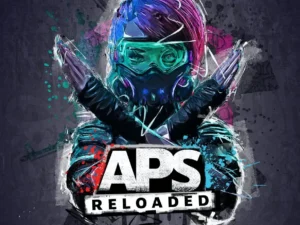
APS Reloaded Photoshop Action
Sold by 315700
Magic Face Retouching
Sold by Studio 2 Belas
Oil Paint FX Photoshop Action Plugin
Sold by Giallo
Comic Portrait Photo Effect
Sold by Doku Doku Nomi
25 Master Class Charcoal Effects PSE
Sold byPhotoshop action questions.
Helpful information for installing, using and customizing Photoshop actions.
What is a Photoshop action?
A Photoshop action is a recorded sequence of editing commands that Photoshop can replay automatically to reproduce a workflow or creative effect.
How do I install a Photoshop action?
In Photoshop, open Window → Actions, use the Actions panel menu and choose Load Actions, then select the compatible action file.
What file type do Photoshop actions use?
Photoshop actions commonly use the ATN format, although individual downloads may contain additional brushes, patterns, textures or instruction files.
Can Photoshop actions be customized?
Often yes. Many actions generate editable layers and masks that can be adjusted after the action finishes running.
Are Photoshop actions suitable for beginners?
Many are straightforward to use, especially when instructions are included, although more complex actions may require specific preparation steps.
Why does the result look different from the preview?
Image resolution, subject, lighting, colors and preparation can affect the final result. Adjust generated layers and masks after playback as needed.
Do all Photoshop actions work with every Photoshop version?
No. Compatibility can vary, so review the individual product description before purchasing or installing an action.
Where can I get help?
Visit the Contact Us page or browse the Brushes Pack FAQ’s.
Photoshop actions for faster photo editing and creative effects.
Photoshop actions help automate repeatable editing steps inside Adobe Photoshop. Instead of manually recreating the same sequence of adjustments, filters, masks and layer operations for every image, an action can run those steps automatically.
At Brushes Pack, you can explore Photoshop actions for photo editing, painting effects, cinematic treatments, glow, retro design, sketch effects, portrait styling and many other creative workflows.
Photoshop actions for photo editing
Photo editing actions can speed up common visual treatments such as contrast, tone, color, sharpening and creative finishing. They can be particularly useful when working on a series of images that need a similar visual direction.
The best results usually come from using the action as a base and then refining the generated adjustments for each specific image.
Professional Photoshop actions
Professional workflows benefit from repeatable processes. Actions can reduce setup time while keeping complex layer structures and effects easier to reproduce across projects.
Brushes Pack currently has a substantial Photoshop Actions catalog, including hundreds of action products and effects across photo editing and digital artwork. :contentReference[oaicite:1]{index=1}
Painting Photoshop actions
Painting actions can transform photography into artwork inspired by oil paint, digital painting, watercolor and illustration. Some actions create layered results so artists can continue adjusting the image after playback.
Brushes Pack currently includes dedicated digital painting actions and similar artistic effects for Photoshop. :contentReference[oaicite:2]{index=2}
Cinematic Photoshop actions
Cinematic actions typically focus on color, contrast, shadows and dramatic visual mood. They can help establish a stronger storytelling direction for portraits, travel photography, posters and promotional artwork.
The catalog also includes cinematic and moody editing resources alongside Photoshop actions and Lightroom presets. :contentReference[oaicite:3]{index=3}
Vintage and retro Photoshop actions
Retro effects may recreate faded film, print imperfections, photocopy treatments, old color reproduction or nostalgic graphic styles.
These actions are useful for posters, editorial graphics, photography and digital art when the project needs a less polished, more analog-inspired character.
Glow and light Photoshop actions
Glow actions can introduce light rays, color effects, flare, neon atmosphere and other dramatic lighting treatments.
Brushes Pack currently sells Photoshop actions specifically built around colorful light and glow effects. :contentReference[oaicite:4]{index=4}
Sketch and drawing actions
Sketch actions can transform photographs into pencil, line-art or drawing-inspired results. They can be useful for portraits, architectural visuals and stylized creative compositions.
For stronger results, choose source images with clear subject separation and enough detail for the action to interpret.
Comic and pop art actions
Comic and pop-art actions may combine outlines, halftones, graphic color and high-contrast effects. These treatments can create bold poster-style results from photographs.
The current Brushes Pack Photoshop Actions archive includes pop-art and other artistic effects. :contentReference[oaicite:5]{index=5}
Photoshop actions for photographers
Photographers can use actions to automate repetitive creative treatments while keeping their original image editing decisions intact.
Actions can be especially useful for producing alternate stylized versions, editorial effects and consistent color treatments across several images.
Photoshop actions for graphic designers
Graphic designers can use actions to generate stylized artwork for posters, social content, album covers, promotional graphics and presentations.
The Brushes Pack catalog and editorial collections include actions spanning risograph, cartoon, blueprint, glow, oil painting, retro print and other design effects. :contentReference[oaicite:6]{index=6}
Photoshop actions for beginners
Beginners can use actions to explore how more advanced Photoshop effects are structured. After playback, inspect the generated layers, masks and adjustments to understand how the visual treatment was built.
For many actions, the workflow begins by loading the ATN file through Photoshop’s Actions panel and playing the desired action. Brushes Pack’s own action guides describe this standard process. :contentReference[oaicite:7]{index=7}
How to organize Photoshop actions
As your collection grows, divide actions into groups such as Photo Editing, Painting, Cinematic, Retro, Glow, Portrait, Sketch and Special Effects.
Keeping frequently used actions separate from experimental effects can make the Actions panel easier to navigate.
Combine actions with Photoshop brushes
Photoshop actions and brushes solve different creative problems. Actions automate sequences, while brushes give you direct control over painting, masking, texture and detail.
Explore our Photoshop Brushes & Digital Assets page to build a broader Photoshop toolkit.
Combine Photoshop actions with textures
Textures can add further grain, paper, distress and surface detail after an automated effect has been created.
Browse our Digital Textures collection for additional creative finishing resources.
Download Photoshop actions from Brushes Pack
Explore the Actions collection at Brushes Pack for painting effects, photo treatments, glow effects, sketch styles, cinematic edits and other Photoshop automation resources.
Before purchasing, review each individual product page for current file contents, Photoshop compatibility, required preparation steps and included instructions. You can also browse the complete Brushes Pack shop for brushes, textures, mockups, presets, templates and other creative digital assets.
What creators value in a useful Photoshop action library.
Editorial-style perspectives representing common priorities among photographers, designers and digital artists who use automated Photoshop workflows.
“I like actions that save the repetitive setup but still leave the important layers editable. That gives me speed without making every photograph look exactly the same.”
“For design work, actions are useful when I need to test several visual directions quickly. I can try a retro, paint or glow treatment and then develop the strongest direction further.”
“I always inspect the layers after an action finishes. The automated effect gives me a starting point, but masks, color and texture still need to respond to the actual image.”
Helpful information before you purchase.
Learn more about Brushes Pack, find support resources and review important policies for digital products.
Editing Workflow Notes are editorial-style examples representing common creative viewpoints and are not presented as verified purchase testimonials.
Continue building your Photoshop toolkit.
Combine Photoshop actions with brushes, textures, effects and presets for more flexible editing and creative workflows.
Speed up your Photoshop workflow with creative actions.
Explore Photoshop actions for photo editing, painting effects, cinematic looks, glow, vintage styles and professional creative transformations at Brushes Pack.